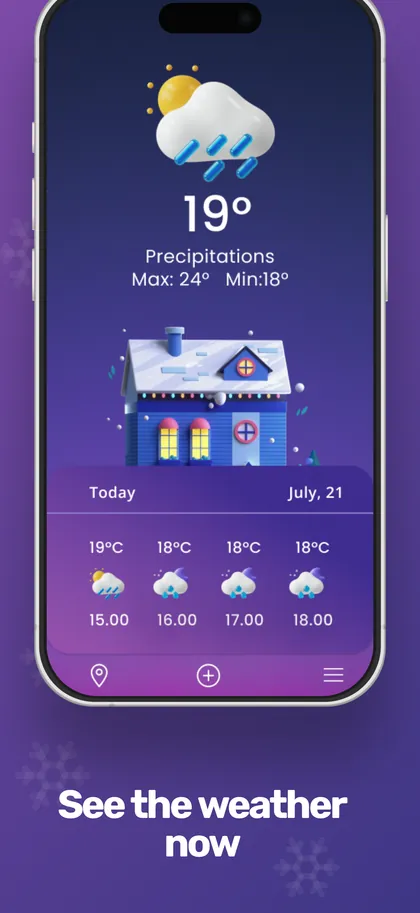
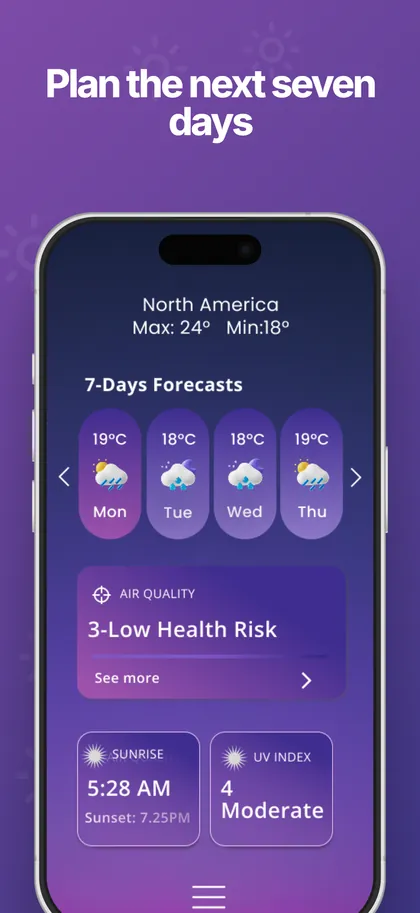
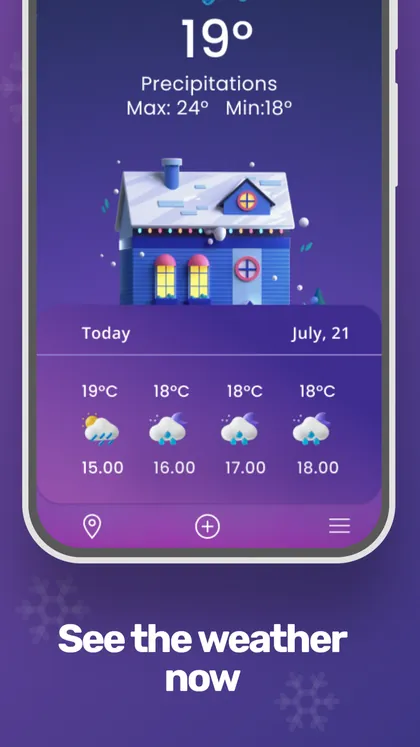
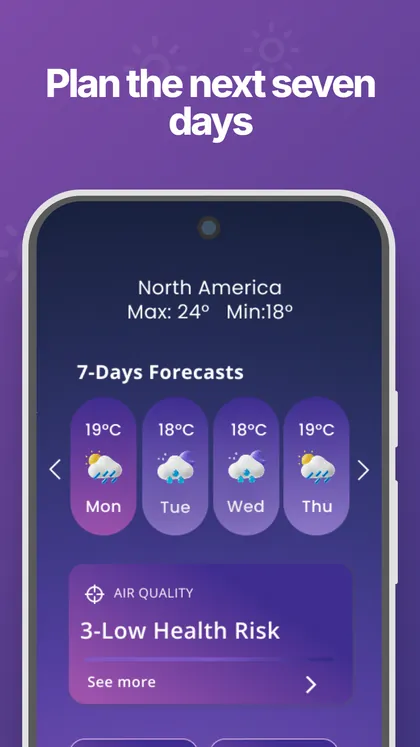
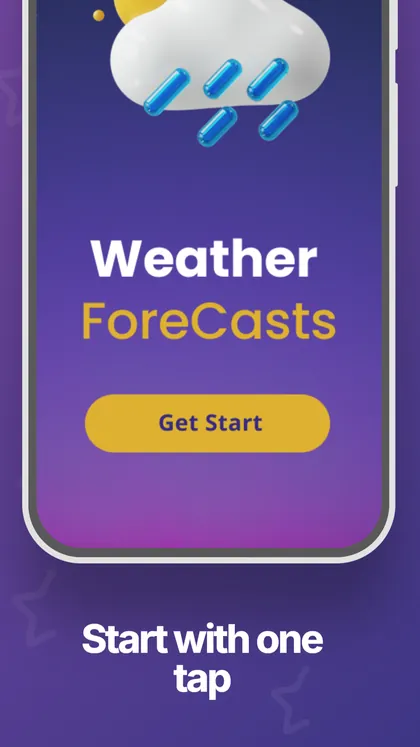
One design for two stores

App Store & Google PlayScreenshot Generator

Upload each app screen once. Add a device frame, headline and background, then export connected App Store and Google Play versions without rebuilding the layout.

Create your screenshot set Free to start No account required High-resolution PNG export
appshotset.dev / editor Live product
App Store output1320 × 2868 PNG
Google Play output1080 × 1920 PNG
Start without signupAnonymous workspace
Specs verified 23 Aug 2026Apple · Google Play
How it works

From app screens to two connected store sets.

AppShotSet keeps a shared master design at the center, while still letting iOS and Android screens differ when the app experience requires it.

  1. 01

    Upload your app screens

    Add up to three screenshots on Basic, then choose a starter template or begin with a blank layout.

  2. 02

    Design one connected set

    Add device frames, captions and backgrounds once. Use a store-specific override only when iOS and Android need to differ.

  3. 03

    Review and export

    Inspect both store rows and export the included PNG profiles. Upload the finished files to each store manually.

Design the screenshot once. We adapt it for both stores.

Upload an app screenshot, choose a layout and add your caption once. AppShotSet creates the App Store and Google Play versions side by side and keeps them connected through every edit.

App Store + Google Play

Use one screenshot in both store layouts.

Upload your app screenshot once. AppShotSet creates connected App Store and Google Play layouts while one shared design keeps both versions in sync.

iPhone and Pixel frames

Drop your app screens into real device frames.

Choose a phone, then adjust its color, size, position, rotation and shadow directly on the preview.

Backgrounds

Choose a color, gradient or your own image.

Use ready-made backgrounds or generate matching colors from the screenshot you uploaded.

Text and brand

Use your fonts, colors, logo and headline style.

Edit the copy and control its font, size, weight, alignment and color. Add logos, images, icons and overlays when needed.

Check and export

See problems before downloading the PNGs.

Review missing screenshots, check the Google Play safe zone and inspect the complete set before export.

One screenshot, two stores

Stop building the same screenshot twice.

Change the screenshot, headline, background, phone or screen order once. The App Store 1320 × 2868 and Google Play 1080 × 1920 profiles update together.

Create your screenshot set
Manual workflow
  • Upload and place the same screenshot twice
  • Crop screenshots into frames by hand
  • Rebuild backgrounds and type styles
  • Discover mistakes after exporting
With AppShotSet
  • Use one screenshot in both stores
  • Use device-aware iPhone and Pixel frames
  • Apply styles across the whole set
  • Review outputs and safe zones first
Included outputs

Know exactly which files you will export.

These are the current AppShotSet output profiles. Google Play accepts a wider range of dimensions; 1080 × 1920 is the high-resolution portrait phone profile included in the editor.

AppShotSet PNG output profiles
OutputSizeFormatUse
App Store · iPhone 6.9"1320 × 2868PNGApp Store Connect
Google Play · Phone1080 × 1920PNGPlay Console
Raw · Master1320 × 2868PNGArchive or reuse

AppShotSet prepares the files. You remain in control of the final review and manual upload to App Store Connect and Play Console.

Requirements & guides

Check the rules before you publish.

Use the checker for a quick validation, or open a focused guide for the current Apple and Google Play requirements.

No design skills required

Common questions.

Six straight answers about exports, store differences, saving and submission.

Create your screenshot set
01

Can I use one app screenshot for both stores?

Yes. Upload it once and AppShotSet creates connected App Store and Google Play versions. You can adapt the crop or replace the screenshot for one store only when needed.

02

What files and sizes will I get?

You can download PNG files at 1320 × 2868 for the App Store, 1080 × 1920 for Google Play and 1320 × 2868 for the raw Master. You upload the finished files to each store yourself.

03

Can iOS and Android use different app screenshots?

Yes. Start with one shared screenshot, then add separate App Store and Google Play overrides only where the two versions need to differ.

04

What can I do with Basic?

Basic includes the first three screens, starter templates and device frames, clean previews and up to five high-resolution downloads per day. No payment is required to start.

05

Do I need an account, and will my work be saved?

No sign-up is required to start. The editor creates an anonymous workspace and autosaves your projects so you can return to them in the same browser.

06

Does AppShotSet upload screenshots to the stores?

No. AppShotSet exports PNG files for the included output profiles. You review them and upload the finished files to App Store Connect and Play Console yourself.

Free to start

One screenshot in. Both store versions out.

Start with three screens on Basic. Design each screenshot once and export the included App Store and Google Play PNG profiles.

Create your screenshot set Your work autosaves while you design